Change e-mail reminder template
The extension includes email templates for all common scenarios which are located in Settings > Email Templates. As default the template PremsAbandonedCart: Abandoned notification to customer is already available.
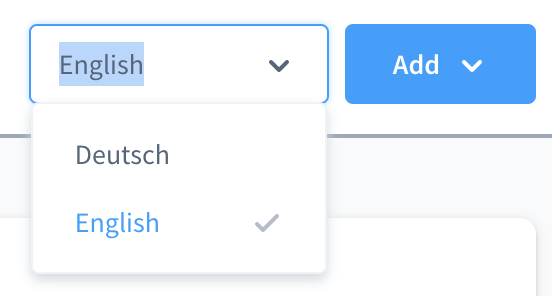
If your shop environment supports EN and DE languages, templates are included for each language. Use the language selector dropdown to switch between languages.

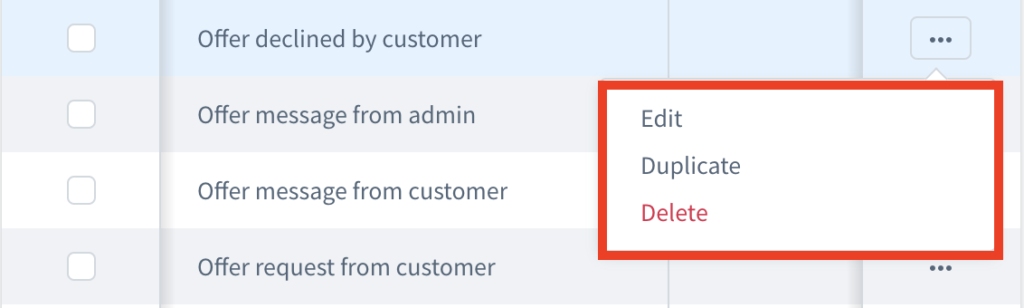
Each email template can be edited, duplicated or deleted by clicking the corresponding “…” menu button for a template and selecting Edit, Duplicate or Delete, all of which are standard Shopware Administration options.
Editing email templates is an optional, advanced step and should only be carried out if the standard email templates are not suitable for your shop, e.g. to adjust the wording.

Editing an email template
From the Edit Email Template screen, modify the properties of the email template as required, using the following fields, then click Save.
Any dynamic elements within the email subject and body are represented by strings such as {{ abandonedCart.identToken }}. Modifying these strings may result in emails not displaying dynamic elements correctly, such as the customer name.
Setting
Panel
Type
Description
Type
Information
Dropdown menu
The type is a predefined value that is required for identifying the correct scenario for an email template. Do not change this setting for the standard email templates as this will cause issues with the app.
Description
Information
Free text input
Enter an optional description for the template.
Subject
Options
Free text input
Modify the default email subject header text New offer as required. The string {{ offer.offerNumber }} allows for dynamic display of the relevant offer number and should not be modified.
Sender name
Options
Free text input
Default is the string {{ salesChannel.name }} which allows dynamic displays of the sales channel. This should not be modified.
Upload file
Attachments
File explorer
Upload any files you wish to include as attachments for the current selected email template, such as terms and conditions or a privacy policy.
Plain text
Mail text
Free text input
Modify the default plain text version of the email body. There are various strings here which allow for dynamic elements within the email text, these should not be modified.
HTML
Mail text
Free text input
Modify the default HTML text version of the email body. There are various strings here which allow for dynamic elements within the email text, these should not be modified.
Duplicating an email template
Selecting the Duplicate option creates a copy of that email template and opens the Edit Email Template screen (see previous section).
Deleting an email template
Do not delete the standard email templates as this will cause problems with the app. Any additional templates you create can be deleted without causing any issues.
Flow Builder Events (Emails)
When an email is sent and to which recipients it is sent is controlled entirely by the Flow Builder.
The Flow Builder can be found in the Shopware Admin under Settings -> Shop -> Flow Builder. The flow of this extension is named as Abandoned notification to customer.
A flow can be edited by clicking on the 3 dots. In the detailed view in the Flow tab, you can define the triggers and actions. To change the recipients of an email, click on the 3 dots in the Send email action and select Edit action. You can change the Recipient in the layer that opens.
Last updated
Was this helpful?