# Change E-Mails

The Affiliate System extension includes email templates for all common scenarios which are located in **Settings** > **Email Templates**. These templates are described in the table below.

{% hint style="info" %}
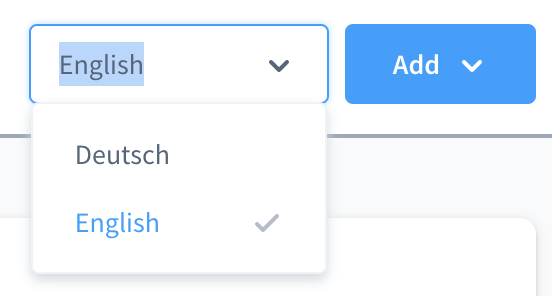
**If your shop environment supports multiple languages, templates are included for each language. Use the language selector dropdown to switch between languages.**
{% endhint %}

<figure><img src="https://premsoft.de/wp-content/uploads/2022/05/IO_Language_Selector.png" alt="" height="128" width="239"><figcaption></figcaption></figure>

| **Email template**                                       | **Description**                                                                                           |
| -------------------------------------------------------- | --------------------------------------------------------------------------------------------------------- |
| PremsAffiliate: Approved info to customer                | With this email, the customer is informed that their application to become a partner has been accepted.   |
| PremsAffiliate: Declined info to customer                | An email informing the customer that their application to become a partner has been rejected.             |
| PremsAffiliate: New partner application info to admin    | Email notification to the shop operator that a customer has submitted an application to become a partner. |
| PremsAffiliate: Partner code change approved             | This email informs the partner that their requested affiliate code change has been accepted.              |
| PremsAffiliate: Partner code change declined             | Informs a partner that their requested change to the affiliate code has been rejected.                    |
| PremsAffiliate: Partner code change requested            | Info email to the shop operator that a partner wants to change their affiliate code.                      |
| PremsAffiliate: Partner created new payout info to admin | If a partner requests payment of their commission, this email will be sent to the shop operator.          |
| PremsAffiliate: Payout approved info to customer         | This email template informs the partner about their commission payment.                                   |

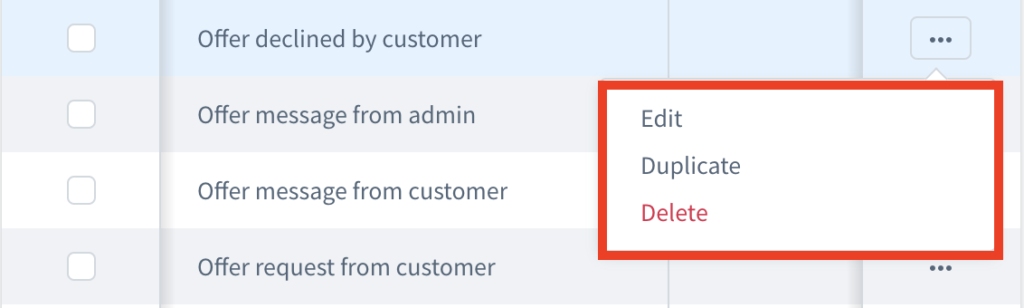
Each email template can be edited, duplicated or deleted by clicking the corresponding **“…”** menu button for a template and selecting **Edit, Duplicate** or **Delete**, all of which are standard Shopware Administration options.

{% hint style="info" %}
**Editing email templates is an optional, advanced step and should only be carried out if the standard email templates are not suitable for your shop**, **e.g. to adjust the wording.**
{% endhint %}

<figure><img src="https://premsoft.de/wp-content/uploads/2022/05/IO_Email_Template_Options-1024x308.png" alt="" height="133" width="445"><figcaption></figcaption></figure>

### Editing an email template

From the **Edit Email Template** screen, modify the properties of the email template as required, using the following fields, then click **Save**.

Any dynamic elements within the email subject and body are represented by strings such as **{{partner.customer.salutation.letterName }}**. Modifying these strings may result in emails not displaying dynamic elements correctly, such as the customer name.

<table data-header-hidden><thead><tr><th></th><th width="40"></th><th></th><th></th><th></th></tr></thead><tbody><tr><td><strong>Setting</strong></td><td></td><td><strong>Panel</strong></td><td><strong>Type</strong></td><td><strong>Description</strong></td></tr><tr><td>Type</td><td></td><td>Information</td><td>Dropdown menu</td><td>The type is a predefined value that is required for identifying the correct scenario for an email template. <strong>Do not change this setting</strong> for the standard email templates as this will cause issues with the app.</td></tr><tr><td>Description</td><td></td><td>Information</td><td>Free text input</td><td>Enter an optional description for the template.</td></tr><tr><td>Subject</td><td></td><td>Options</td><td>Free text input</td><td>Modify the default email subject header text <strong>New offer</strong> as required.<br>The string <strong>{{ offer.offerNumber }}</strong> allows for dynamic display of the relevant offer number and should not be modified.</td></tr><tr><td>Sender name</td><td></td><td>Options</td><td>Free text input</td><td>Default is the string <strong>{{ salesChannel.name }}</strong> which allows dynamic displays of the sales channel. This should not be modified.</td></tr><tr><td>Upload file</td><td></td><td>Attachments</td><td>File explorer</td><td>Upload any files you wish to include as attachments for the current selected email template, such as terms and conditions or a privacy policy.</td></tr><tr><td>Plain text</td><td></td><td>Mail text</td><td>Free text input</td><td>Modify the default plain text version of the email body. There are various strings here which allow for dynamic elements within the email text, these should not be modified.</td></tr><tr><td>HTML</td><td></td><td>Mail text</td><td>Free text input</td><td>Modify the default HTML text version of the email body. There are various strings here which allow for dynamic elements within the email text, these should not be modified.</td></tr></tbody></table>

### Duplicating an email template

Selecting the **Duplicate** option creates a copy of that email template and opens the **Edit Email Template** screen (see previous section).

### Deleting an email template

**Do not delete the standard email templates** as this will cause problems with the app. Any additional templates you create can be deleted without causing any issues.

### Flow Builder Events (Emails)

When an email is sent and to which recipients it is sent is controlled entirely by the Flow Builder.

The Flow Builder can be found in the Shopware Admin under **Settings -> Shop -> Flow Builder**. The flows from the Affiliate System all begin with **PremsAffiliate**.

A flow can be edited by clicking on the 3 dots. In the detailed view in the **Flow** tab, you can define the triggers and actions. To change the recipients of an email, click on the 3 dots in the **Send email** action and select **Edit action**. You can change the **Recipient** in the layer that opens.


---

# Agent Instructions: Querying This Documentation

If you need additional information that is not directly available in this page, you can query the documentation dynamically by asking a question.

Perform an HTTP GET request on the current page URL with the `ask` query parameter:

```
GET https://docs.premsoft.de/en/plugins/affiliate-system/change-e-mails.md?ask=<question>
```

The question should be specific, self-contained, and written in natural language.
The response will contain a direct answer to the question and relevant excerpts and sources from the documentation.

Use this mechanism when the answer is not explicitly present in the current page, you need clarification or additional context, or you want to retrieve related documentation sections.
